
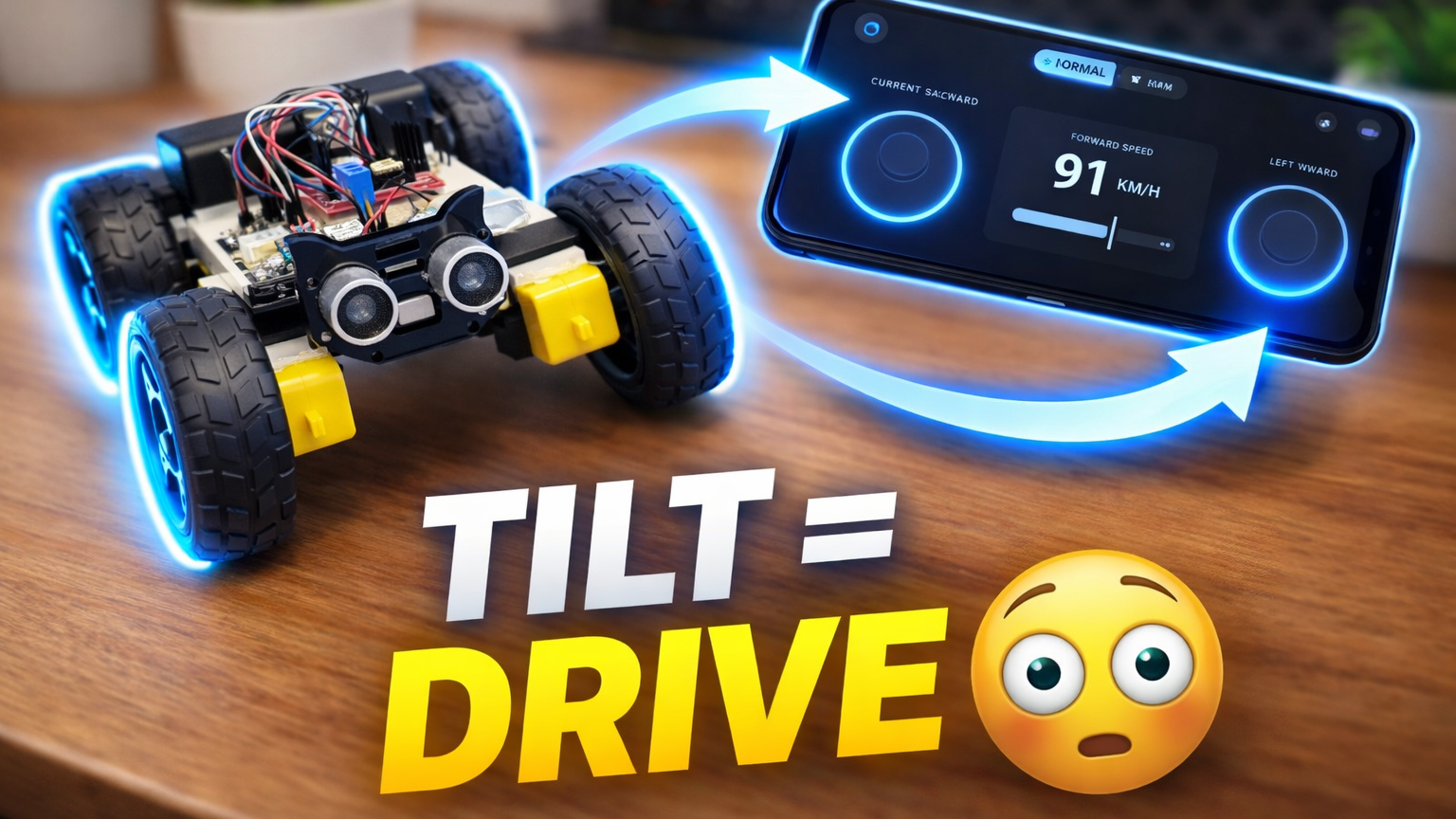
How to make WIFI Controlled Car with GYROSCOPE and Normal Control | Easy & Simple
Quick Navigation

In this project, we will build a WiFi-controlled robot car that can be operated using both a normal on-screen joystick and the gyroscope of your smartphone. Instead of using a traditional remote, you can simply tilt your phone to control the movement of the car, making it more interactive and fun to use.
The system is powered by the ESP32-S3 microcontroller, which creates its own WiFi network and hosts a web server to receive commands from the mobile app. Based on the input, the ESP32 processes the commands and controls the motors through the L298N motor driver module.
One of the most interesting parts of this project is the use of the smartphone’s built-in gyroscope sensor. The app reads the tilt of your phone and converts it into movement commands, allowing the car to move forward, backward, and turn based on real-time motion input. This makes the project a great example of how sensors can be used to create intuitive and responsive control systems.
By the end of this tutorial, you will have a fully functional WiFi-controlled car with dual control modes — joystick and gyro — combining robotics, wireless communication, and sensor-based interaction.
**I’m currently looking for beta testers to test the Android app for Google Play Store release. If you’d like early access, fill out this form. You’ll receive the Play Store link to download and test the app: **https://forms.gle/Q6HTcKdMvneqjF7s9
Before we begin, a huge shoutout to RapidDirect for sponsoring this project.
Let’s start building.
Supplies

Electronic Components Required:
- Seeed Studio XIAO ESP32-S3
- L298N Dual H-Bridge Motor Driver Module
- 4× DC Gear Motors
- 4× Robot Wheels
- Robot Chassis (see step 1)
- Lithium Battery Pack (3.7V 300mah Li-Po Battery or 2 × 18650 battery)
- Jumper Wires (Male-to-Female / Female-to-Female)
- Breadboard
Step 1: CAD & 3D Printing
The body of the robot car is made using a few simple 3D printed parts. These parts hold the motors, wheels, and electronics securely while keeping the robot compact and clean looking.
The main printed components used in this project are:
- Car Chassis – This is the main frame of the robot where all components such as the motors, ESP32 board, and battery are mounted.
- Motor Clips – Used to hold the motors firmly in place on the chassis.
All parts were designed in ThinkerCAD and printed using PLA filament on a standard FDM 3D printer. After printing, lightly clean the parts if needed and make sure the motors and wheels fit properly before moving to the assembly step.
Once all the printed parts are ready, we can begin assembling the robot.
Step 2: Don’t Have a 3D Printer? Use RapidDirect


For this project, I designed a custom chassis that needs to be 3D printed. But if you don’t have a 3D printer, you can still build this project easily using RapidDirect.
RapidDirect is an online manufacturing platform that helps you turn your designs into real parts. They offer services like 3D printing, CNC machining, injection molding, and sheet metal fabrication, making it a great option for both beginners and advanced makers.
What I really like is how simple the process is. You just upload your design, customize it based on your needs, and get an instant quote. The platform is very beginner-friendly, and you can choose different materials and finishes depending on your project.
I’m going with PLA for this build, but you can select any material that suits your requirement.
Basic steps:
- Go to the website
- Click on “Get Instant Quote”
- Select 3D Printing
- Upload your STL file
- Click on “Configure”
- Choose material and settings
- Check the quote and place your order
You can check them out here: https://www.rapiddirect.com?rdtm_from=YouTubeKRoboatticLab
Step 3: Chassis Assembly

- Take the DC gear motors and solder two wires to the terminals of each motor. Make sure the connections are solid and the wires are long enough to reach the motor driver.
- Insert the motors into the 3D-printed motor clips so that the motor body fits tightly inside the holder.
- Place the motor clips (with the motors inside) into the motor slots on the chassis. Ensure the motor shafts are facing outward where the wheels will be mounted.
- Apply a small amount of hot glue around the motor clips to secure them firmly to the chassis.
- Attach the wheels onto the motor shafts and press them firmly so they sit tightly on the motors.
- Mount the breadboard onto the chassis using double-sided tape. Press it down properly so it stays fixed.
- Place the motor driver module on one end of the breadboard and secure it using a small amount of hot glue.
- Finally, insert the motor wires into the output terminals of the motor driver module and tighten the terminal screws to hold the wires in place.
Step 4: Circuit Connection

Now let’s connect all the electronic components according to the circuit diagram.
1. Motor Driver Connection
Now connect the L298N motor driver to the ESP32-S3. These pins will control the speed and direction of the motors.
- L298N → XIAO ESP32-S3
- ENA → D6
- IN1 → D7
- IN2 → D8
- ENB → D9
- IN3 → D10
- IN4 → D0
The motor wires that were soldered earlier should already be connected to the output terminals of the L298N motor driver.
2. Power Connections
The XIAO ESP32-S3 is powered using a 3.7V LiPo battery connected directly to the battery connector on the board.
Since the XIAO ESP32-S3 includes built-in battery management, it can safely power the system and also be charged through the USB-C port when needed.
The motor driver receives power from the external battery (2 × 18650 battery) system, and the motors are driven through the L298N module.
Important: Make sure the GND of the ESP32-S3, motor driver, and all other modules are connected together so the entire circuit shares a common ground.
Once all the connections are complete, double-check the wiring before powering the system. After verifying everything, we can move on to uploading the code in the next step.
Step 5: Code

Now we will upload the program to the Seeed Studio XIAO ESP32-S3 so the robot can listen to voice commands and control the motors.
1. Install Arduino IDE and ESP32 Board Package
- Install the latest version of Arduino IDE on your computer.
- Open Arduino IDE and install the ESP32 board package:
- Go to File → Preferences
- In Additional Board Manager URLs, add:
https://raw.githubusercontent.com/espressif/arduino-esp32/gh-pages/package_esp32_index.json
- Then go to:
- Tools → Board → Boards Manager
- Search for ESP32 and install the ESP32 board package.
2. Select the Board and Port
- Open Arduino IDE and configure the board.
- Go to:
- Tools → Board → ESP32 Arduino → XIAO ESP32S3
- Then select the correct COM port:
- Tools → Port → Select the port connected to your XIAO ESP32-S3
3. Copy the Project Code
// --- L298N Motor Driver Pins (Seeed XIAO ESP32-S3) ---
#define ENA 43
#define MOTOR_IN1 44
#define MOTOR_IN2 7
#define ENB 8
#define MOTOR_IN3 9
#define MOTOR_IN4 1

#include <WiFi.h>
#include <WiFiClient.h>
#include <WebServer.h>

int speedCar = 200;
int speed_Coeff = 3;

const char* ssid = "Wifi Car";
WebServer server(80);

void goAhead() {
  digitalWrite(MOTOR_IN1, HIGH);
  digitalWrite(MOTOR_IN2, LOW);
  analogWrite(ENA, speedCar);
  digitalWrite(MOTOR_IN3, HIGH);
  digitalWrite(MOTOR_IN4, LOW);
  analogWrite(ENB, speedCar);
}
void goBack() {
  digitalWrite(MOTOR_IN1, LOW);
  digitalWrite(MOTOR_IN2, HIGH);
  analogWrite(ENA, speedCar);
  digitalWrite(MOTOR_IN3, LOW);
  digitalWrite(MOTOR_IN4, HIGH);
  analogWrite(ENB, speedCar);
}
void goRight() {
  digitalWrite(MOTOR_IN1, LOW);
  digitalWrite(MOTOR_IN2, HIGH);
  analogWrite(ENA, speedCar + 50);
  digitalWrite(MOTOR_IN3, HIGH);
  digitalWrite(MOTOR_IN4, LOW);
  analogWrite(ENB, speedCar);
}
void goLeft() {


  digitalWrite(MOTOR_IN1, HIGH);
  digitalWrite(MOTOR_IN2, LOW);
  analogWrite(ENA, speedCar + 50);
  digitalWrite(MOTOR_IN3, LOW);
  digitalWrite(MOTOR_IN4, HIGH);
  analogWrite(ENB, speedCar);
}
void goAheadRight() {
  digitalWrite(MOTOR_IN1, LOW);
  digitalWrite(MOTOR_IN2, HIGH);
  analogWrite(ENA, speedCar / speed_Coeff);
  digitalWrite(MOTOR_IN3, LOW);
  digitalWrite(MOTOR_IN4, HIGH);
  analogWrite(ENB, speedCar);
}
void goAheadLeft() {
  digitalWrite(MOTOR_IN1, LOW);
  digitalWrite(MOTOR_IN2, HIGH);
  analogWrite(ENA, speedCar);
  digitalWrite(MOTOR_IN3, LOW);
  digitalWrite(MOTOR_IN4, HIGH);
  analogWrite(ENB, speedCar / speed_Coeff);
}
void goBackRight() {
  digitalWrite(MOTOR_IN1, HIGH);
  digitalWrite(MOTOR_IN2, LOW);
  analogWrite(ENA, speedCar / speed_Coeff);
  digitalWrite(MOTOR_IN3, HIGH);
  digitalWrite(MOTOR_IN4, LOW);
  analogWrite(ENB, speedCar);
}
void goBackLeft() {
  digitalWrite(MOTOR_IN1, HIGH);
  digitalWrite(MOTOR_IN2, LOW);
  analogWrite(ENA, speedCar);
  digitalWrite(MOTOR_IN3, HIGH);
  digitalWrite(MOTOR_IN4, LOW);
  analogWrite(ENB, speedCar / speed_Coeff);
}
void stopRobot() {
  digitalWrite(MOTOR_IN1, LOW);
  digitalWrite(MOTOR_IN2, LOW);
  analogWrite(ENA, 0);
  digitalWrite(MOTOR_IN3, LOW);
  digitalWrite(MOTOR_IN4, LOW);
  analogWrite(ENB, 0);
}

// ✅ Command is handled IMMEDIATELY when HTTP request arrives
void HTTP_handleRoot(void) {
  if (server.hasArg("State")) {
    String command = server.arg("State");
    Serial.println(command);

    if (command == "F") goAhead();
    else if (command == "B") goBack();
    else if (command == "L") goLeft();
    else if (command == "R") goRight();
    else if (command == "I") goAheadRight();
    else if (command == "G") goAheadLeft();
    else if (command == "J") goBackRight();
    else if (command == "H") goBackLeft();
    else if (command == "S") stopRobot();
    else if (command == "0") speedCar = 100;
    else if (command == "1") speedCar = 117;
    else if (command == "2") speedCar = 134;
    else if (command == "3") speedCar = 151;
    else if (command == "4") speedCar = 168;
    else if (command == "5") speedCar = 185;
    else if (command == "6") speedCar = 204;
    else if (command == "7") speedCar = 220;
    else if (command == "8") speedCar = 225;
    else if (command == "9") speedCar = 300;
  }
  server.send(200, "text/html", "");
}

void setup() {
  pinMode(ENA, OUTPUT);
  pinMode(ENB, OUTPUT);
  pinMode(MOTOR_IN1, OUTPUT);
  pinMode(MOTOR_IN2, OUTPUT);
  pinMode(MOTOR_IN3, OUTPUT);
  pinMode(MOTOR_IN4, OUTPUT);

  Serial.begin(115200);

  WiFi.mode(WIFI_AP);
  WiFi.softAP(ssid);

  IPAddress myIP = WiFi.softAPIP();
  Serial.print("AP IP address: ");
  Serial.println(myIP);

  server.on("/", HTTP_handleRoot);
  server.onNotFound(HTTP_handleRoot);
  server.begin();
}

void loop() {
  server.handleClient();  // Only job: listen for incoming requests
}
4. Configure Your WiFi Credentials
Inside the code, locate the WiFi configuration section:
const char* ssid = "YOUR_WIFI_NAME"; const char* password = "YOUR_WIFI_PASSWORD";
Replace these values with your WiFi network name and password.
Example:
const char* ssid = "MyHomeWiFi"; const char* password = "mypassword123";
The ESP32 will connect to this network to send audio to the speech recognition service.
5. Upload the Code
- Connect the XIAO ESP32-S3 to your computer using a USB-C cable.
- Then upload the code:
- Click Upload in Arduino IDE.
- The program will compile and transfer to the board.
After the code is uploaded successfully, the robot will start listening for voice commands and controlling the motors accordingly.
Step 6: Working Video and Tutorial
Congratulations! You’ve successfully built your WIFI Controlled Car With GYROSCOPE and Normal Control. A demonstration video of this project can be viewed here: Watch Now
The Android app is currently in closed testing. I need your support as a beta tester to complete this phase. Once done, the app will be published and the download link will be available here. https://forms.gle/Q6HTcKdMvneqjF7s9
Thank you for your interest in this project. If you have any questions or suggestions for future projects, please leave a comment, and I will do my best to assist you.
For business or promotional inquiries, please contact me via email at Email.
I will continue to update this article with new information. Don’t forget to follow me for updates on new projects and subscribe to my YouTube channel (YouTube: roboattic Lab) for more content. Thank you for your support.
Related Articles
 iot project
Build a DIY AI Pin: Real-Life Jarvis with ESP32S3
Build a Jarvis! This 9-step guide uses ESP32S3 and Gemini for a wearable assistant.
Read the full iot project tutorial: See Project Details iot project
Face Recognition Based Attendance System Using XIAO ESP32S3 Sense Board
In this project, we will be using XIAO ESP32S3 Sense Board as our camera input and we will be using OpenCV & Visual Studio for the face detection and as the face is detected it will record the attendance with date and time in CSV file.
Read the full iot project tutorial: See Project Details iot project
How to Build a Desktop Companion Robot | ESP32 S3
Build a DIY Desktop Companion Robot with Seeed Studio XIAO ESP32-S3. Create animated eyes that react to PC activity like music and typing.
Read the full iot project tutorial: Follow Tutorial