How to Build a Desktop Companion Robot | ESP32 S3
Quick Navigation

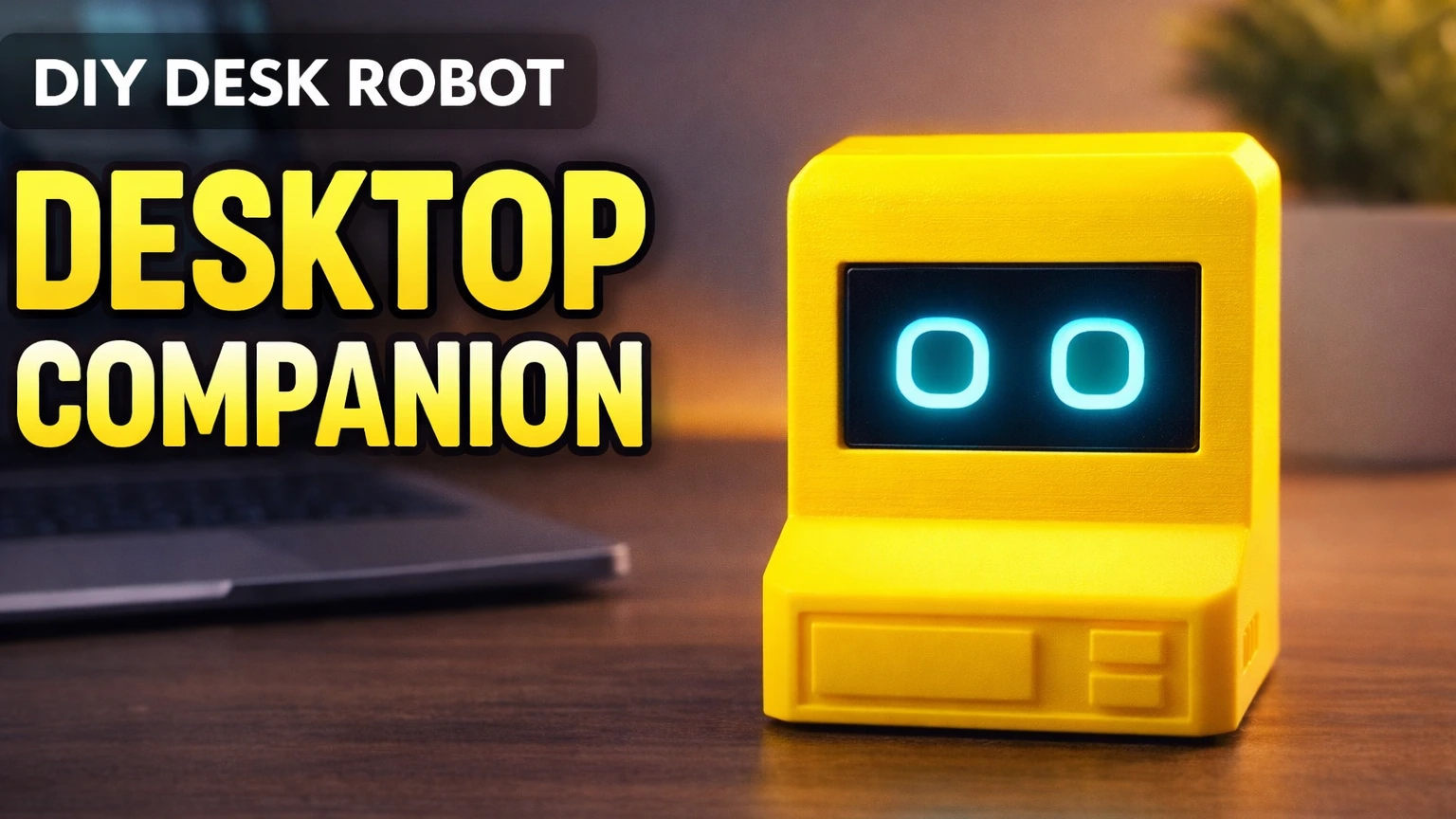
Greetings everyone, and welcome to the tutorial. Today, I'll guide you through the process of creating a Desktop Companion Robot using Seeed Studio XIAO ESP32 S3.
Project Overview:
Desktop companion robots are trending right now, but buying one can be expensive. So in this video, I built my own DIY desktop companion robot using a Seeed Studio XIAO ESP32-S3, and an OLED display. This is basically me trying to give my desk some life, cute blinking eyes that actually react to what I'm doing, like playing music or just sitting idle. It's way more fun than just a boring screen sitting there.
This project covers:
- How to connect a 0.96" SSD1306 OLED display with the Seeed Studio XIAO ESP32-S3
- How to use the FluxGarage RoboEyes Arduino library for smooth animated eyes
- How to create blinking, winking, and emotion-based eye animations (happy, tired, angry, confused)
- How to build a Wi-Fi-controlled web dashboard to change eye moods in real-time
- How to write a Python script that auto-detects laptop activity (music, typing, idle, gaming)
- How to send real-time activity data from PC to ESP32 over HTTP
- Build a cute animated desk companion that reacts to what you're doing a desk pet that watches you work!
Now, let's get started with our project!
Supplies


Electronic Components Required:
- Seeed Studio XIAO ESP32-S3: https://www.seeedstudio.com/XIAO-ESP32S3-p-5627.html
- 0.96" SSD1306 OLED Display (I2C, 128×64): https://a.co/d/05wZfjRw
- Jumper Wires (Female-to-Female): https://a.co/d/07eR2csU
- USB-C Cable: https://a.co/d/0guDXGhn
Additional Components:
- 3D-Printed Enclosure
- Hot Glue
- Cutter
- Soldering Iron
- PLA Filament
Software:
- Arduino IDE
Step 1: Test Setup on Breadboard


Follow the steps:
- Place the Seeed Studio XIAO ESP32 S3 Board and 0.9" OLED Display on the breadboard, and make the connections using jumper wires, exactly as shown in the circuit diagram.
- Then connect the Seeed Studio XIAO ESP32 S3 Board to your computer using the USB-C cable.
- Open Arduino IDE, and then go to File → Examples → Examples from Custom Libraries → FluxGarage RoboEyes → I2C_SSD1306_Basics
- Once the I2C_SSD1306_Basics example is opened, go to Tools → Board → Seeed XIAO ESP32S3 and then select the correct port from Tools → Port → COM8 (Serial Port USB).
- Finally, click the Upload (→) button and upload the code to the board.
After uploading the code, you will see the eyes displayed on the screen.
Step 2: 3D-printed Enclosure

Special thanks to my friend Diyat Boi for designing the 3D model.
Model Download link: https://grabcad.com/library/mini-retro-clock-case-for-wemos-d1-mini-oled-1/details?folder_id=14119619
The model was 3D printed using PLA+ filament (yellow and black) with 10% infill.
Step 3: Final Setup, and Putting Components in the Enclosure


Follow the steps below to assemble the hardware:
- Insert the female header pins into the 0.9" OLED display. Trim the excess length from the other side using a cutter.
- Solder the display connections to the Seeed Studio XIAO ESP32S3 according to the circuit diagram.
- Take the 3D-printed enclosure and use hot glue to securely mount the OLED display and the XIAO ESP32S3 inside it.
- Properly position and secure the antenna.
- Attach the back cover to close the enclosure.
Your Desktop Companion body is now ready. Proceed to the next step to upload the main code.
Step 4: Main Code, Desktop_companion.ino, and Desktop_companion_client.py

Now open the Arduino IDE, paste this code, and hit that upload button.
NOTE: DON'T FORGET TO ENTER YOUR WIFI NAME AND PASSWORD.
/*
* ============================================
* Desktop Companion Robot
* ~ roboattic Lab ~
* ============================================
*
* Libraries (Arduino Library Manager):
* - FluxGarage_RoboEyes
* - Adafruit SSD1306
* - Adafruit GFX Library
* ============================================
*/
#include <WiFi.h>
#include <WebServer.h>
#include <Wire.h>
#include <Adafruit_GFX.h>
#include <Adafruit_SSD1306.h>
#include <FluxGarage_RoboEyes.h>
// ── Wi-Fi Credentials ──────────────────────────
const char* WIFI_SSID = "*************";
const char* WIFI_PASSWORD = "**********";
// ── Display Config ─────────────────────────────
#define SCREEN_WIDTH 128
#define SCREEN_HEIGHT 64
#define OLED_RESET -1
#define OLED_ADDR 0x3C
#define SDA_PIN 5
#define SCL_PIN 6
// ── Core Objects ───────────────────────────────
Adafruit_SSD1306 display(SCREEN_WIDTH, SCREEN_HEIGHT, &Wire, OLED_RESET);
RoboEyes<Adafruit_SSD1306> roboEyes(display);
WebServer server(80);
// ── Activity States ────────────────────────────
enum ActivityState {
STATE_IDLE,
STATE_MUSIC,
STATE_TYPING,
STATE_BROWSING,
STATE_GAMING,
STATE_LAUGHING,
STATE_ERROR_STATE,
STATE_WATCHING
};
// ── State Machine ──────────────────────────────
ActivityState currentState = STATE_BROWSING;
ActivityState previousState = STATE_BROWSING;
bool stateJustChanged = false;
bool oneshotPlayed = false;
unsigned long stateChangeTime = 0;
// ── Animation Timers ───────────────────────────
unsigned long lastPosChange = 0;
unsigned long lastMicroAnim = 0;
unsigned long lastWinkTime = 0;
unsigned long lastBeatBounce = 0;
int posIndex = 0;
int beatPhase = 0;
// ── Boot Animation State ───────────────────────
bool bootAnimDone = false;
unsigned long bootAnimStart = 0;
int bootPhase = 0;
bool bootEvent1 = false;
bool bootEvent2 = false;
bool bootEvent3 = false;
bool bootEvent4 = false;
// ────────────────────────────────────────────────
// STATE NAME MAPPING
// ────────────────────────────────────────────────
const char* stateToString(ActivityState s) {
switch (s) {
case STATE_IDLE: return "idle";
case STATE_MUSIC: return "music";
case STATE_TYPING: return "typing";
case STATE_BROWSING: return "browsing";
case STATE_GAMING: return "gaming";
case STATE_LAUGHING: return "laughing";
case STATE_ERROR_STATE: return "error";
case STATE_WATCHING: return "watching";
default: return "unknown";
}
}
ActivityState stringToState(const String& s) {
if (s == "idle") return STATE_IDLE;
if (s == "music") return STATE_MUSIC;
if (s == "typing") return STATE_TYPING;
if (s == "browsing") return STATE_BROWSING;
if (s == "gaming") return STATE_GAMING;
if (s == "laughing") return STATE_LAUGHING;
if (s == "error") return STATE_ERROR_STATE;
if (s == "watching") return STATE_WATCHING;
return STATE_BROWSING;
}
// ────────────────────────────────────────────────
// SIMPLE JSON PARSER (no ArduinoJson needed)
// ────────────────────────────────────────────────
String parseStateFromJson(const String& json) {
int idx = json.indexOf("\"state\"");
if (idx == -1) return "";
idx = json.indexOf(":", idx);
if (idx == -1) return "";
int start = json.indexOf("\"", idx + 1);
if (start == -1) return "";
int end = json.indexOf("\"", start + 1);
if (end == -1) return "";
return json.substring(start + 1, end);
}
// ────────────────────────────────────────────────
// WEB DASHBOARD (Glassmorphism UI)
// ────────────────────────────────────────────────
const char DASHBOARD_HTML[] PROGMEM = R"rawliteral(
<!DOCTYPE html>
<html>
<head>
<meta charset="UTF-8">
<meta name="viewport" content="width=device-width, initial-scale=1.0">
<title>Doodle Eyes</title>
<style>
* { margin:0; padding:0; box-sizing:border-box; }
body {
font-family: 'Segoe UI', system-ui, sans-serif;
background: linear-gradient(135deg, #0f0c29, #302b63, #24243e);
color: #fff; min-height: 100vh;
display: flex; flex-direction: column;
align-items: center; padding: 30px 20px;
}
h1 {
font-size: 2.4em; margin-bottom: 6px;
background: linear-gradient(90deg, #f9d423, #ff4e50);
-webkit-background-clip: text; -webkit-text-fill-color: transparent;
}
.sub { color: #8888aa; margin-bottom: 28px; font-size: 0.9em; letter-spacing: 0.5px; }
.card {
background: rgba(255,255,255,0.06);
backdrop-filter: blur(12px);
border: 1px solid rgba(255,255,255,0.1);
border-radius: 18px; padding: 22px 32px;
margin-bottom: 28px; text-align: center;
min-width: 280px; transition: all 0.3s ease;
}
.card:hover { border-color: rgba(255,255,255,0.2); }
.lbl { color: #7777aa; font-size: 0.75em; text-transform: uppercase; letter-spacing: 2px; }
.val {
font-size: 2em; font-weight: 700; margin-top: 6px;
background: linear-gradient(90deg, #f9d423, #ff4e50);
-webkit-background-clip: text; -webkit-text-fill-color: transparent;
}
.grid {
display: grid;
grid-template-columns: repeat(auto-fit, minmax(130px, 1fr));
gap: 10px; max-width: 580px; width: 100%;
}
.btn {
padding: 14px 8px; border: none; border-radius: 14px;
font-size: 0.95em; font-weight: 600; cursor: pointer;
transition: all 0.25s cubic-bezier(.4,0,.2,1); color: #fff;
position: relative; overflow: hidden;
}
.btn::after {
content: ''; position: absolute; inset: 0;
background: linear-gradient(135deg, rgba(255,255,255,0.15), transparent);
opacity: 0; transition: opacity 0.25s;
}
.btn:hover { transform: translateY(-3px); box-shadow: 0 8px 25px rgba(0,0,0,0.4); }
.btn:hover::after { opacity: 1; }
.btn:active { transform: translateY(-1px); }
.btn.active { box-shadow: 0 0 0 2px #fff, 0 8px 25px rgba(0,0,0,0.4); }
.b1 { background: linear-gradient(135deg, #11998e, #38ef7d); }
.b2 { background: linear-gradient(135deg, #4facfe, #00f2fe); }
.b3 { background: linear-gradient(135deg, #667eea, #764ba2); }
.b4 { background: linear-gradient(135deg, #606c88, #3f4c6b); }
.b5 { background: linear-gradient(135deg, #f12711, #f5af19); }
.b6 { background: linear-gradient(135deg, #f9d423, #ff4e50); }
.b7 { background: linear-gradient(135deg, #cb2d3e, #ef473a); }
.b8 { background: linear-gradient(135deg, #8e2de2, #4a00e0); }
.ft { margin-top: 36px; color: #444; font-size: 0.75em; }
</style>
</head>
<body>
<h1>Doodle Eyes</h1>
<p class="sub">Animated Desk Companion</p>
<div class="card">
<div class="lbl">Current Mood</div>
<div class="val" id="cs">...</div>
</div>
<div class="grid">
<button class="btn b1" onclick="ss('music')" data-s="music">🎵 Music</button>
<button class="btn b2" onclick="ss('typing')" data-s="typing">⌨ Typing</button>
<button class="btn b3" onclick="ss('browsing')" data-s="browsing">👁 Browsing</button>
<button class="btn b4" onclick="ss('idle')" data-s="idle">😴 Idle</button>
<button class="btn b5" onclick="ss('gaming')" data-s="gaming">🎮 Gaming</button>
<button class="btn b6" onclick="ss('laughing')" data-s="laughing">😂 Laughing</button>
<button class="btn b7" onclick="ss('error')" data-s="error">❌ Error</button>
<button class="btn b8" onclick="ss('watching')" data-s="watching">📺 Watching</button>
</div>
<p class="ft">v2.0 · ESP32-S3</p>
<script>
let cur='';
function hl(s){
document.querySelectorAll('.btn').forEach(b=>b.classList.toggle('active',b.dataset.s===s));
}
function ss(s){
fetch('/state',{method:'POST',headers:{'Content-Type':'application/json'},
body:JSON.stringify({state:s})}).then(r=>r.json()).then(d=>{
cur=d.state||s; document.getElementById('cs').textContent=cur; hl(cur);
}).catch(()=>{});
}
function gs(){
fetch('/status').then(r=>r.json()).then(d=>{
cur=d.state||'?'; document.getElementById('cs').textContent=cur; hl(cur);
}).catch(()=>{});
}
gs(); setInterval(gs,3000);
</script>
</body>
</html>
)rawliteral";
// ────────────────────────────────────────────────
// WEB SERVER HANDLERS
// ────────────────────────────────────────────────
void handleRoot() {
server.send(200, "text/html", DASHBOARD_HTML);
}
void handleSetState() {
if (server.hasArg("plain")) {
String body = server.arg("plain");
String stateStr = parseStateFromJson(body);
if (stateStr.length() > 0) {
ActivityState newState = stringToState(stateStr);
if (newState != currentState) {
previousState = currentState;
currentState = newState;
stateChangeTime = millis();
stateJustChanged = true;
oneshotPlayed = false;
posIndex = 0;
beatPhase = 0;
Serial.print("[State] -> ");
Serial.println(stateStr);
}
String response = "{\"state\":\"" + String(stateToString(currentState)) + "\",\"status\":\"ok\"}";
server.send(200, "application/json", response);
} else {
server.send(400, "application/json", "{\"error\":\"bad request\"}");
}
} else {
server.send(400, "application/json", "{\"error\":\"no body\"}");
}
}
void handleGetStatus() {
unsigned long uptime = millis() / 1000;
String response = "{\"state\":\"" + String(stateToString(currentState))
+ "\",\"uptime\":" + String(uptime)
+ ",\"heap\":" + String(ESP.getFreeHeap()) + "}";
server.send(200, "application/json", response);
}
// ────────────────────────────────────────────────
// BOOT SCREEN ANIMATIONS
// ────────────────────────────────────────────────
void displayConnecting(int dots) {
display.clearDisplay();
display.setTextSize(1);
display.setTextColor(SSD1306_WHITE);
// Cute loading bar
int barWidth = 80;
int barX = (SCREEN_WIDTH - barWidth) / 2;
display.drawRoundRect(barX, 40, barWidth, 10, 4, SSD1306_WHITE);
int fill = (dots * 4) % barWidth;
if (fill > 2) display.fillRoundRect(barX + 2, 42, fill - 2, 6, 2, SSD1306_WHITE);
display.setCursor(28, 16);
display.print("Connecting");
for (int i = 0; i < (dots % 4); i++) display.print(".");
display.setCursor((SCREEN_WIDTH - strlen(WIFI_SSID) * 6) / 2, 56);
display.setTextSize(1);
display.print(WIFI_SSID);
display.display();
}
void displayIPAddress(String ip) {
display.clearDisplay();
display.setTextSize(1);
display.setTextColor(SSD1306_WHITE);
// Centered layout
display.setCursor(14, 4);
display.print("~ Doodle Eyes v2 ~");
display.drawLine(10, 15, SCREEN_WIDTH - 10, 15, SSD1306_WHITE);
display.setCursor(28, 22);
display.print("Connected!");
// IP in larger text
display.setTextSize(1);
int ipLen = ip.length() * 6;
display.setCursor((SCREEN_WIDTH - ipLen) / 2, 36);
display.print(ip);
display.setCursor(10, 52);
display.print("Open in browser :)");
display.display();
}
// ── Cute wakeup animation with the eyes ────────
void playBootAnimation() {
unsigned long elapsed = millis() - bootAnimStart;
// Phase 1 (0-800ms): Eyes stay closed, build anticipation
if (elapsed >= 800 && !bootEvent1) {
bootEvent1 = true;
roboEyes.open(); // Slowly open eyes
}
// Phase 2 (2000ms): Look around curiously — "where am I?"
if (elapsed >= 2000 && !bootEvent2) {
bootEvent2 = true;
roboEyes.setCuriosity(ON);
roboEyes.setPosition(E);
}
// Phase 3 (2800ms): Look the other way
if (elapsed >= 2800 && !bootEvent3) {
bootEvent3 = true;
roboEyes.setPosition(W);
}
// Phase 4 (3600ms): Happy! Center + laugh, settle into browsing
if (elapsed >= 3600 && !bootEvent4) {
bootEvent4 = true;
roboEyes.setPosition(DEFAULT);
roboEyes.setCuriosity(OFF);
roboEyes.setMood(HAPPY);
roboEyes.anim_laugh();
}
// Done (4500ms): Transition to normal mode
if (elapsed >= 4500) {
bootAnimDone = true;
roboEyes.setMood(DEFAULT);
roboEyes.setAutoblinker(ON, 3, 2);
roboEyes.setIdleMode(ON, 3, 2);
Serial.println("[Boot] Wakeup animation complete!");
}
}
// ────────────────────────────────────────────────
// CONFIGURE EYE STATE ON TRANSITION
// Called ONCE when state changes — not every frame
// ────────────────────────────────────────────────
void configureEyeState() {
// Reset everything to defaults first (clean slate)
roboEyes.setHFlicker(OFF);
roboEyes.setVFlicker(OFF);
roboEyes.setIdleMode(OFF);
roboEyes.setCuriosity(OFF);
roboEyes.setCyclops(OFF);
roboEyes.setSweat(OFF);
switch (currentState) {
case STATE_MUSIC:
// Happy bouncy eyes — vibing to the beat
roboEyes.setMood(HAPPY);
roboEyes.setAutoblinker(ON, 2, 1);
roboEyes.setWidth(38, 38);
roboEyes.setHeight(38, 38);
roboEyes.setBorderradius(10, 10);
roboEyes.setSpacebetween(8);
roboEyes.setPosition(DEFAULT);
break;
case STATE_TYPING:
// Alert, curious eyes — watching you type
roboEyes.setMood(DEFAULT);
roboEyes.setCuriosity(ON);
roboEyes.setAutoblinker(ON, 4, 2);
roboEyes.setWidth(34, 34);
roboEyes.setHeight(36, 36);
roboEyes.setBorderradius(6, 6);
roboEyes.setSpacebetween(10);
roboEyes.setPosition(S);
break;
case STATE_BROWSING:
// Relaxed, gently wandering eyes
roboEyes.setMood(DEFAULT);
roboEyes.setIdleMode(ON, 3, 3);
roboEyes.setAutoblinker(ON, 4, 3);
roboEyes.setWidth(36, 36);
roboEyes.setHeight(36, 36);
roboEyes.setBorderradius(8, 8);
roboEyes.setSpacebetween(10);
break;
case STATE_IDLE:
// Sleepy droopy eyes — barely awake
roboEyes.setMood(TIRED);
roboEyes.setAutoblinker(ON, 2, 1);
roboEyes.setWidth(38, 38);
roboEyes.setHeight(24, 24);
roboEyes.setBorderradius(12, 12);
roboEyes.setSpacebetween(8);
roboEyes.setPosition(S);
break;
case STATE_GAMING:
roboEyes.setMood(ANGRY);
roboEyes.setHFlicker(ON, 1);
roboEyes.setAutoblinker(ON, 6, 3);
roboEyes.setWidth(40, 40);
roboEyes.setHeight(28, 28);
roboEyes.setBorderradius(4, 4);
roboEyes.setSpacebetween(6);
roboEyes.setPosition(DEFAULT);
break;
case STATE_LAUGHING:
// Happy & bouncy — full joy
roboEyes.setMood(HAPPY);
roboEyes.setAutoblinker(OFF);
roboEyes.setWidth(36, 36);
roboEyes.setHeight(36, 36);
roboEyes.setBorderradius(10, 10);
roboEyes.setSpacebetween(10);
roboEyes.setPosition(DEFAULT);
break;
case STATE_ERROR_STATE:
// Confused with sweat drops — "uh oh"
roboEyes.setMood(DEFAULT);
roboEyes.setSweat(ON);
roboEyes.setAutoblinker(ON, 2, 1);
roboEyes.setWidth(36, 36);
roboEyes.setHeight(36, 36);
roboEyes.setBorderradius(8, 8);
roboEyes.setSpacebetween(10);
roboEyes.setPosition(DEFAULT);
break;
case STATE_WATCHING:
roboEyes.setMood(DEFAULT);
roboEyes.setAutoblinker(ON, 6, 4);
roboEyes.setWidth(42, 42);
roboEyes.setHeight(42, 42);
roboEyes.setBorderradius(14, 14);
roboEyes.setSpacebetween(4);
roboEyes.setPosition(DEFAULT);
break;
}
stateJustChanged = false;
}
// ────────────────────────────────────────────────
// PER-FRAME DYNAMIC BEHAVIORS
// Lightweight animations that run every loop
// ────────────────────────────────────────────────
void updateDynamicBehavior() {
unsigned long now = millis();
unsigned long inState = now - stateChangeTime;
switch (currentState) {
case STATE_MUSIC: {
unsigned long beatInterval = 600;
if (now - lastBeatBounce > beatInterval) {
lastBeatBounce = now;
beatPhase = (beatPhase + 1) % 6;
switch (beatPhase) {
case 0: roboEyes.setPosition(E); break;
case 1: roboEyes.setPosition(DEFAULT); break;
case 2: roboEyes.setPosition(W); break;
case 3: roboEyes.setPosition(DEFAULT); break;
case 4: roboEyes.setPosition(SE); break;
case 5: roboEyes.setPosition(SW); break;
}
}
if (now - lastWinkTime > 8000) {
lastWinkTime = now;
roboEyes.blink(true, false);
}
break;
}
case STATE_TYPING: {
if (now - lastPosChange > 1200) {
lastPosChange = now;
posIndex = (posIndex + 1) % 8;
switch (posIndex) {
case 0: roboEyes.setPosition(S); break;
case 1: roboEyes.setPosition(S); break;
case 2: roboEyes.setPosition(SE); break;
case 3: roboEyes.setPosition(S); break;
case 4: roboEyes.setPosition(S); break;
case 5: roboEyes.setPosition(SW); break;
case 6: roboEyes.setPosition(N); break;
case 7: roboEyes.setPosition(S); break;
}
}
break;
}
case STATE_BROWSING:
if (now - lastWinkTime > 15000) {
lastWinkTime = now;
int r = random(3);
if (r == 0) roboEyes.blink(true, false);
else if (r == 1) roboEyes.blink(false, true);
}
break;
case STATE_IDLE: {
if (inState > 10000) {
if (now - lastMicroAnim > 6000) {
lastMicroAnim = now;
int r = random(4);
if (r == 0) {
roboEyes.open();
}
}
if (now - lastPosChange > 3000) {
lastPosChange = now;
roboEyes.close();
}
} else {
if (now - lastPosChange > 3000) {
lastPosChange = now;
int r = random(3);
if (r == 0) roboEyes.setPosition(SW);
else if (r == 1) roboEyes.setPosition(S);
else roboEyes.setPosition(SE);
}
}
break;
}
case STATE_GAMING:
if (now - lastMicroAnim > 5000) {
lastMicroAnim = now;
int r = random(3);
if (r == 0) {
roboEyes.setPosition(E);
} else if (r == 1) {
roboEyes.setPosition(W);
}
}
if (now - lastMicroAnim > 400 && now - lastMicroAnim < 500) {
roboEyes.setPosition(DEFAULT);
}
break;
case STATE_LAUGHING:
if (!oneshotPlayed) {
roboEyes.anim_laugh();
oneshotPlayed = true;
lastMicroAnim = now;
}
if (oneshotPlayed && (now - lastMicroAnim > 1500)) {
lastMicroAnim = now;
roboEyes.anim_laugh();
}
break;
case STATE_ERROR_STATE:
if (!oneshotPlayed) {
roboEyes.anim_confused();
oneshotPlayed = true;
lastMicroAnim = now;
}
if (oneshotPlayed && (now - lastPosChange > 2000)) {
lastPosChange = now;
posIndex = (posIndex + 1) % 4;
switch (posIndex) {
case 0: roboEyes.setPosition(NE); break;
case 1: roboEyes.setPosition(SW); break;
case 2: roboEyes.setPosition(NW); break;
case 3: roboEyes.setPosition(SE); break;
}
if (random(3) == 0) {
roboEyes.anim_confused();
}
}
break;
case STATE_WATCHING:
if (now - lastPosChange > 8000) {
lastPosChange = now;
int r = random(5);
if (r == 0) roboEyes.setPosition(E);
else roboEyes.setPosition(DEFAULT);
}
break;
}
}
void setup() {
Serial.begin(115200);
delay(500);
Serial.println("\n╔══════════════════════════════════╗");
Serial.println("║ DOODLE EYES v2.0 — Starting... ║");
Serial.println("╚══════════════════════════════════╝");
// ── Initialize I2C & OLED ──
Wire.begin(SDA_PIN, SCL_PIN);
if (!display.begin(SSD1306_SWITCHCAPVCC, OLED_ADDR)) {
Serial.println("[ERROR] SSD1306 not found!");
for(;;);
}
Serial.println("[OK] OLED initialized");
display.clearDisplay();
display.display();
// ── Connect to Wi-Fi ──
Serial.printf("[WiFi] Connecting to %s", WIFI_SSID);
WiFi.mode(WIFI_STA);
WiFi.begin(WIFI_SSID, WIFI_PASSWORD);
int dots = 0;
while (WiFi.status() != WL_CONNECTED) {
displayConnecting(dots++);
delay(500);
Serial.print(".");
}
Serial.printf("\n[WiFi] Connected! IP: %s\n", WiFi.localIP().toString().c_str());
// Show IP on screen
displayIPAddress(WiFi.localIP().toString());
delay(4000);
// ── Initialize RoboEyes ──
roboEyes.begin(SCREEN_WIDTH, SCREEN_HEIGHT, 100);
roboEyes.close();
// Set pleasant defaults
roboEyes.setWidth(36, 36);
roboEyes.setHeight(36, 36);
roboEyes.setBorderradius(8, 8);
roboEyes.setSpacebetween(10);
// Start boot animation
bootAnimStart = millis();
Serial.println("[Boot] Playing wakeup animation...");
// ── Setup Web Server ──
server.on("/", HTTP_GET, handleRoot);
server.on("/state", HTTP_POST, handleSetState);
server.on("/status", HTTP_GET, handleGetStatus);
server.on("/state", HTTP_OPTIONS, []() {
server.sendHeader("Access-Control-Allow-Origin", "*");
server.sendHeader("Access-Control-Allow-Methods", "POST, GET, OPTIONS");
server.sendHeader("Access-Control-Allow-Headers", "Content-Type");
server.send(204);
});
server.enableCORS(true);
server.begin();
Serial.printf("[Server] Running at http://%s\n", WiFi.localIP().toString().c_str());
stateChangeTime = millis();
lastWinkTime = millis();
lastMicroAnim = millis();
}
// ────────────────────────────────────────────────
// MAIN LOOP — keep it clean, no delay()!
// ────────────────────────────────────────────────
void loop() {
server.handleClient();
if (!bootAnimDone) {
playBootAnimation();
} else {
if (stateJustChanged) {
configureEyeState();
}
updateDynamicBehavior();
}Now open the serial monitor and get the IP address. After that, open VS Code, create a new desktop_companion_client.py file, and paste this code:
"""
============================================
Desktop Companion Robot
============================================

  Usage:
    pip install requests pycaw pynput comtypes
    python doodle_client.py --ip 192.168.1.100

  Activity detection (Windows):
    - Music/Audio playing  → "music"
    - Fast typing          → "typing"
    - Idle > 2 minutes     → "idle"
    - Default              → "browsing"
============================================
"""

import argparse
import time
import threading
import sys
import requests
import ctypes
import ctypes.wintypes

# ─── Audio Detection (Windows via pycaw) ───────
def is_audio_playing():
    """Check if any audio is currently playing on the system."""
    try:
        from pycaw.pycaw import AudioUtilities, IAudioMeterInformation
        from comtypes import CLSCTX_ALL

        sessions = AudioUtilities.GetAllSessions()
        for session in sessions:
            if session.Process:
                try:
                    meter = session._ctl.QueryInterface(IAudioMeterInformation)
                    peak = meter.GetPeakValue()
                    if peak > 0.01:  # threshold for "actually playing audio"
                        return True
                except Exception:
                    pass
        return False
    except ImportError:
        print("⚠️  pycaw not installed. Audio detection disabled.")
        print("   Install with: pip install pycaw comtypes")
        return False
    except Exception:
        return False


# ─── Idle Time Detection (Windows) ─────────────
class LASTINPUTINFO(ctypes.Structure):
    _fields_ = [
        ('cbSize', ctypes.c_uint),
        ('dwTime', ctypes.c_uint),
    ]

def get_idle_seconds():
    """Get the number of seconds since last user input (mouse/keyboard)."""
    try:
        lii = LASTINPUTINFO()
        lii.cbSize = ctypes.sizeof(LASTINPUTINFO)
        ctypes.windll.user32.GetLastInputInfo(ctypes.byref(lii))
        millis = ctypes.windll.kernel32.GetTickCount() - lii.dwTime
        return millis / 1000.0
    except Exception:
        return 0


# ─── Keyboard Activity Monitor ─────────────────
class KeyboardMonitor:
    """Tracks typing speed using pynput."""

    def __init__(self):
        self.key_count = 0
        self.keys_per_second = 0.0
        self._lock = threading.Lock()
        self._running = False

    def start(self):
        """Start monitoring keyboard in background thread."""
        try:
            from pynput import keyboard

            def on_press(key):
                with self._lock:
                    self.key_count += 1

            self._listener = keyboard.Listener(on_press=on_press)
            self._listener.daemon = True
            self._listener.start()
            self._running = True

            # Start KPS calculation thread
            calc_thread = threading.Thread(target=self._calc_kps, daemon=True)
            calc_thread.start()

            print("✅ Keyboard monitor started")
        except ImportError:
            print("⚠️  pynput not installed. Keyboard detection disabled.")
            print("   Install with: pip install pynput")

    def _calc_kps(self):
        """Calculate keys-per-second every second."""
        while True:
            time.sleep(1)
            with self._lock:
                self.keys_per_second = self.key_count
                self.key_count = 0

    def get_kps(self):
        """Get current keys per second."""
        with self._lock:
            return self.keys_per_second


# ─── State Detection Logic ─────────────────────
IDLE_THRESHOLD_SEC = 120       # 2 minutes
TYPING_KPS_THRESHOLD = 3      # 3 keys per second = "fast typing"

def detect_state(kb_monitor):
    """Detect current activity state based on system signals."""

    # Priority 1: Audio playing → music
    if is_audio_playing():
        return "music"

    # Priority 2: Fast typing → typing
    kps = kb_monitor.get_kps()
    if kps >= TYPING_KPS_THRESHOLD:
        return "typing"

    # Priority 3: Idle too long → idle
    idle = get_idle_seconds()
    if idle > IDLE_THRESHOLD_SEC:
        return "idle"

    # Default
    return "browsing"


# ─── Send State to ESP32 ──────────────────────
def send_state(ip, state):
    """Send state to the ESP32 Doodle Eyes via HTTP POST."""
    url = f"http://{ip}/state"
    try:
        resp = requests.post(url, json={"state": state}, timeout=3)
        if resp.status_code == 200:
            return True
        else:
            print(f"⚠️  Server returned {resp.status_code}: {resp.text}")
            return False
    except requests.exceptions.ConnectionError:
        print(f"❌ Cannot connect to {ip}. Is the ESP32 running?")
        return False
    except requests.exceptions.Timeout:
        print(f"⏰ Request to {ip} timed out.")
        return False
    except Exception as e:
        print(f"❌ Error: {e}")
        return False


# ─── Pretty Print Banner ──────────────────────
def print_banner():
    print()
    print("  ╔══════════════════════════════════════╗")
    print("  ║    👀  DOODLE EYES CLIENT  👀        ║")
    print("  ║    Animated Desk Companion           ║")
    print("  ╚══════════════════════════════════════╝")
    print()


# ─── Main ─────────────────────────────────────
def main():
    parser = argparse.ArgumentParser(
        description="Doodle Eyes — Send your laptop activity to animated desk eyes"
    )
    parser.add_argument(
        "--ip", required=True,
        help="IP address of the ESP32 Doodle Eyes (shown on OLED at boot)"
    )
    parser.add_argument(
        "--state", default=None,
        choices=["music", "typing", "browsing", "idle", "gaming", "laughing", "error", "watching"],
        help="Manually set a specific state (overrides auto-detection)"
    )
    parser.add_argument(
        "--interval", type=float, default=2.0,
        help="Polling interval in seconds (default: 2.0)"
    )
    args = parser.parse_args()

    print_banner()
    print(f"  🎯 Target ESP32: {args.ip}")

    # Manual override mode
    if args.state:
        print(f"  📌 Manual mode: sending '{args.state}' once")
        success = send_state(args.ip, args.state)
        if success:
            print(f"  ✅ State '{args.state}' sent successfully!")
        else:
            print(f"  ❌ Failed to send state.")
        return

    # Auto-detection mode
    print(f"  🔄 Auto-detection mode (interval: {args.interval}s)")
    print(f"  📡 Detecting: audio, keyboard, idle time")
    print(f"  ⏹️  Press Ctrl+C to stop\n")

    # Start keyboard monitor
    kb_monitor = KeyboardMonitor()
    kb_monitor.start()

    # Give keyboard listener a moment to start
    time.sleep(0.5)

    last_state = None
    consecutive_errors = 0
    MAX_ERRORS = 10

    try:
        while True:
            state = detect_state(kb_monitor)

            # Only send if state changed (reduces network traffic)
            if state != last_state:
                timestamp = time.strftime("%H:%M:%S")
                emoji_map = {
                    "music": "🎵", "typing": "⌨️",
                    "browsing": "🖱️", "idle": "😴"
                }
                emoji = emoji_map.get(state, "❓")

                success = send_state(args.ip, state)
                if success:
                    print(f"  [{timestamp}] {emoji} {state}")
                    last_state = state
                    consecutive_errors = 0
                else:
                    consecutive_errors += 1
                    if consecutive_errors >= MAX_ERRORS:
                        print(f"\n  ❌ Too many connection errors ({MAX_ERRORS}). Exiting.")
                        print(f"     Check if ESP32 is powered and on same network.")
                        sys.exit(1)

            time.sleep(args.interval)

    except KeyboardInterrupt:
        print("\n\n  👋 Doodle Eyes client stopped. Bye!")


if __name__ == "__main__":
    main()
To run:
One-time setup:
pip install requests pycaw pynput comtypes
This will install all the Python libraries.
To run the program:
python desktop_companion_client.py --ip 192.168.1.100
NOTE:
192.168.1.100IS THE IP ADDRESS GIVEN BY MY XIAO ESP32 S3 BOARD. IN YOUR CASE THIS WILL BE DIFFERENT.
Testing: Music Mode, Browsing Mode, Typing Mode, and Idle Mode
Congratulations! You’ve successfully built your Desktop Companion Robot. A demonstration video of this project can be viewed here: Watch Now
Thank you for your interest in this project. If you have any questions or suggestions for future projects, please leave a comment, and I will do my best to assist you.
For business or promotional inquiries, please contact me via email at Email.
I will continue to update this instructable with new information. Don’t forget to follow me for updates on new projects and subscribe to my YouTube channel (YouTube: roboattic Lab) for more content. Thank you for your support.
Related Articles
 iot project
Build a DIY AI Pin: Real-Life Jarvis with ESP32S3
Build a Jarvis! This 9-step guide uses ESP32S3 and Gemini for a wearable assistant.
Read the full iot project tutorial: See Project Details iot project
Face Recognition Based Attendance System Using XIAO ESP32S3 Sense Board
In this project, we will be using XIAO ESP32S3 Sense Board as our camera input and we will be using OpenCV & Visual Studio for the face detection and as the face is detected it will record the attendance with date and time in CSV file.
Read the full iot project tutorial: See Project Details iot project
How to Make a *Gesture Control Mouse* using Flex Sensor, MPU6050 & Node MCU
Build a DIY gesture control mouse using NodeMCU and MPU6050. Tilt to move the cursor and bend a flex sensor to right-click.
Read the full iot project tutorial: Follow Tutorial