
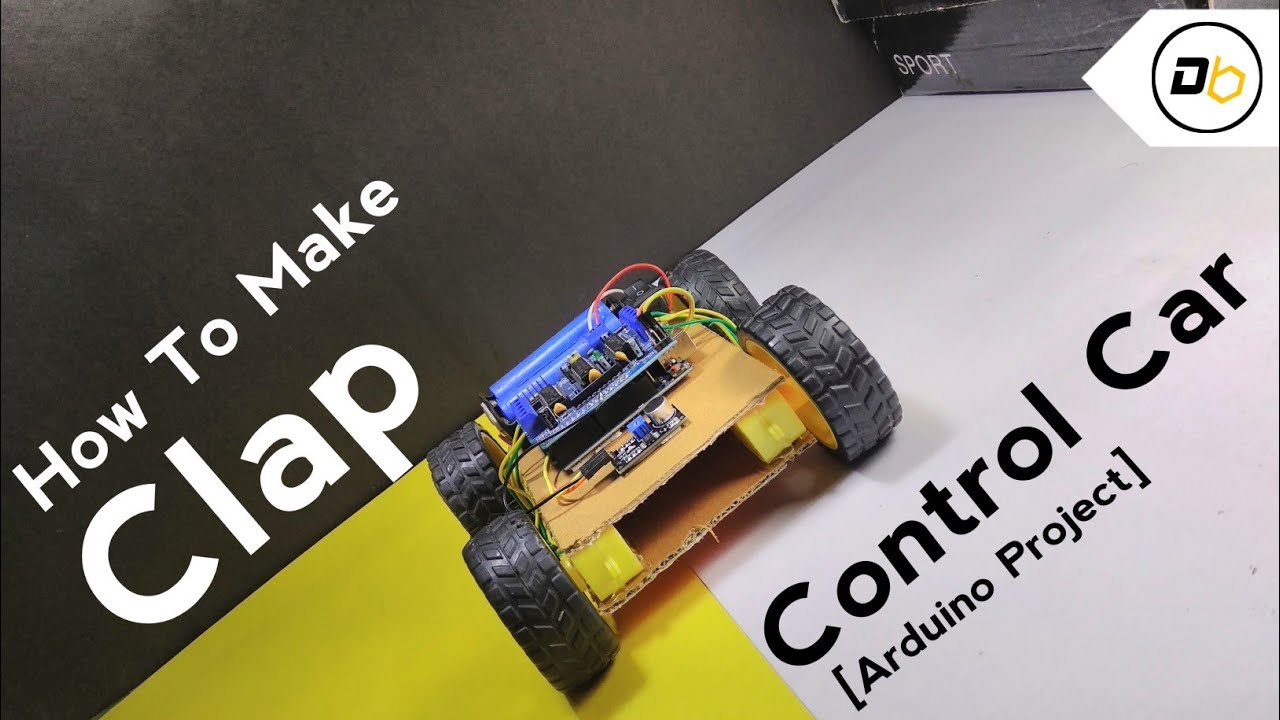
How to Make CLAP Control Car || Using Arduino Uno
Quick Navigation
Hey guys, welcome to my article tutorial. So guys, today we are going to make a "Clap Control Car With Arduino." It seems to be interesting, right?
Let me first tell you about the main working principle of this robot: This car uses a very simple working principle that is as follows:
- When you CLAP once, the car will go forward.
- When you CLAP twice, the car will go backward.
- When you CLAP thrice, the car will go left.
- When you CLAP for the Fourth Time, the car will go Right.
It's a very simple project but with a futuristic idea. If you have not understood its working principle, then take a look at the whole tutorial; you might then understand it...
So let's get started with the project :-)
Supplies

International:
(Amazon)
- Arduino Uno: https://amzn.to/3zJpqrU
- L298D Motor Driver: https://amzn.to/3vA9dBO
- Sound Sensor: https://amzn.to/3vA9dBO
- Gear Motor: https://amzn.to/3vA9dBO
- Rubber Wheel: https://amzn.to/3vA9dBO
- Battery Holder: https://amzn.to/3vA9dBO
- Battery: (Get it in old power bank)
India:
(Quartz Components)
- Arduino Uno: https://bit.ly/3cOLKX2
- L298D Motor Driver: https://bit.ly/3cOLKX2
- Sound Sensor: https://bit.ly/3cOLKX2
- Gear Motor: https://bit.ly/3cOLKX2
- Rubber Wheel: https://bit.ly/3cOLKX2
- Battery Holder: https://bit.ly/3cOLKX2
- Battery: https://bit.ly/3cOLKX2
Step 1: Making of the Chassis:

- So for making the chassis, I am using cardboard, which is cut into the size of 10*14 cm.
- Then we need 4 pcs. of gear motors.
- We will stick the motor to the cardboard using a hot glue gun.
- We move into the wiring of the motors; the wiring will go in this way, and we will solder the wires to the motors' "+" and "-" terminals. As shown in the above image.
- We will require a rubber wheel (4 pcs) for the motor.
- Put the rubber wheel in the gear motors. As shown in the above images.
- Then our chassis is ready. Let's move into the next step...
Step 2: Attach the Motor Driver With the Arduino Uno & Connecting the Motor Wires With the Motor Driver:

- Now this step is very simple; you need to attach the motor driver to Arduino Uno. Just the motor driver according to the pin in the Arduino Uno.
- So here we go; we need to put all the wires of the motor to the motor driver's motor terminals.
Just put the first motor's wire to the motor driver M1 terminal. Then put the second motor's wire to the M2 terminal. Do the same with the rest of the motors.
You also follow the circuit diagram for doing the connection.
Step 3: Mounting the Sound Sensor Into the Chassis:

- We will simply take three jumper wires and attach them to the sensor's pins: +5V, GND & OUT.
- Then we will fix the sound sensor to the chassis with the help of double-sided tape.
Step 4: Connection of Sound Sensor to Arduino... & Battery Holder.


- Simply Connect the Sensor:
OUT to D10
GND to Gnd
VCC to +5V
Follow the pin into the Arduino.
- We will take a battery holder and fix it to the chassis using double-sided tape.
Then connect the GND wire of the holder to the motor driver's power GND terminal. Then connect the +5V wire to the Vcc or +5V terminal of the motor driver.
Follow the circuit diagram for better understanding.
Step 5: Time to Upload the Sketch:

- Now connect the USB cable to the Arduino Uno.
- Remove the OUT pin of the sensor for the successful uploading of the code.
Now simply upload the following code:
// How To Make Clap Control Car
// Code Written By Shahbaz Owner of DIY Burner
// All copyrights reserved to DIY Burner
// Code version: 1.0.0
// For any any quries contact me on Instagram (INSTAGRAM ID: diy_burner)
// Lets get Started...
#include<AFMotor.h>

int sound = 10;
int st = 0;

AF_DCMotor motor1(1, MOTOR12_1KHZ);
AF_DCMotor motor2(2, MOTOR12_1KHZ);
AF_DCMotor motor3(3, MOTOR34_1KHZ);
AF_DCMotor motor4(4, MOTOR34_1KHZ);

int cont = 0;

void Forward()

{

 motor1.setSpeed(255);
  motor1.run(FORWARD);
  motor2.setSpeed(255);
  motor2.run(FORWARD);
  motor3.setSpeed(255);
  motor3.run(FORWARD);
  motor4.setSpeed(255);
  motor4.run(FORWARD);
  delay(1500);
  motor1.run(RELEASE);
  motor2.run(RELEASE);
  motor3.run(RELEASE);
  motor4.run(RELEASE);

}

void Backward()

{

 motor1.setSpeed(255);
  motor1.run(BACKWARD);
  motor2.setSpeed(255);
  motor2.run(BACKWARD);
  motor3.setSpeed(255);
  motor3.run(BACKWARD);
  motor4.setSpeed(255);
  motor4.run(BACKWARD);
  delay(1500);
  motor1.run(RELEASE);
  motor2.run(RELEASE);
  motor3.run(RELEASE);
  motor4.run(RELEASE);
}
void Left()

{

 motor1.setSpeed(255);
  motor1.run(BACKWARD);
  motor2.setSpeed(255);
  motor2.run(BACKWARD);
  motor3.setSpeed(255);
  motor3.run(FORWARD);
  motor4.setSpeed(255);
  motor4.run(FORWARD);
  delay(500);
  motor1.run(RELEASE);
  motor2.run(RELEASE);
  motor3.run(RELEASE);
  motor4.run(RELEASE);

}

void Right()

{

 motor1.setSpeed(255);
  motor1.run(FORWARD);
  motor2.setSpeed(255);
  motor2.run(FORWARD);
  motor3.setSpeed(255);
  motor3.run(BACKWARD);
  motor4.setSpeed(255);
  motor4.run(BACKWARD);
  delay(500);
  motor1.run(RELEASE);
  motor2.run(RELEASE);
  motor3.run(RELEASE);
  motor4.run(RELEASE);

}

void setup()

{

//put your setup code here,to run once;

pinMode (sound, INPUT);

}

void loop()

{

//put your main code here,to run repeatedly;

  if (digitalRead(sound) == HIGH) {
    delay(10);
    if (cont == 0)
      st = millis();
    cont = cont + 1;
    while (digitalRead(sound) != LOW) {
      if (millis() - st > 2000) {
        Serial.print(cont);
        Serial.println(" aplausos");

        doOrders(cont);
        cont = 0;
      }
    }
  }
  if (millis() - st > 2000 && cont != 0) {
    Serial.print(cont);
    Serial.println(" aplausos");
    doOrders(cont);
    cont = 0;
  }
}
void doOrders(int apl) {
 if (cont==1)

{

Forward();

}

else if (cont == 2)

{

Backward();

}

else if (cont == 3)
{

Left();

}

else if (cont == 4)

{

Right();

}
}
Or Download The Code From The Google DRIVE: Download
Step 6: Working Video and Tutorial
Congratulations! You’ve successfully built your Clap Control Car with Arduino. A demonstration video of this project can be viewed here: Watch Now
Thank you for your interest in this project. If you have any questions or suggestions for future projects, please leave a comment, and I will do my best to assist you.
For business or promotional inquiries, please contact me via email at Email.
I will continue to update this article with new information. Don’t forget to follow me for updates on new projects and subscribe to my YouTube channel (YouTube: roboattic Lab) for more content. Thank you for your support.
Related Articles
 arduino project
How to Make Gesture Control Robot || #MadeWithArduino
The transmitter of the car contains gyroscopic sensors which track our hand's gestures and transmit the signal to the receiver of the car and then the car works accordingly to it.
Read the full arduino project tutorial: Follow Tutorial arduino project
Build Your Own Object Tracking 4 DOF Robotics Arm With Arduino
In this project, the robotic arm will execute actions corresponding to the commands received from the sensors.
Read the full arduino project tutorial: See Project Details arduino project
DIY Arduino FFT Audio Spectrum Visualizer
Build a real-time audio spectrum visualizer using an Arduino and MAX7219 display. This DIY guide uses FFT to turn your music into a stunning light show.
Read the full arduino project tutorial: See Project Details