
DIY Arduino FFT Audio Spectrum Visualizer
Quick Navigation
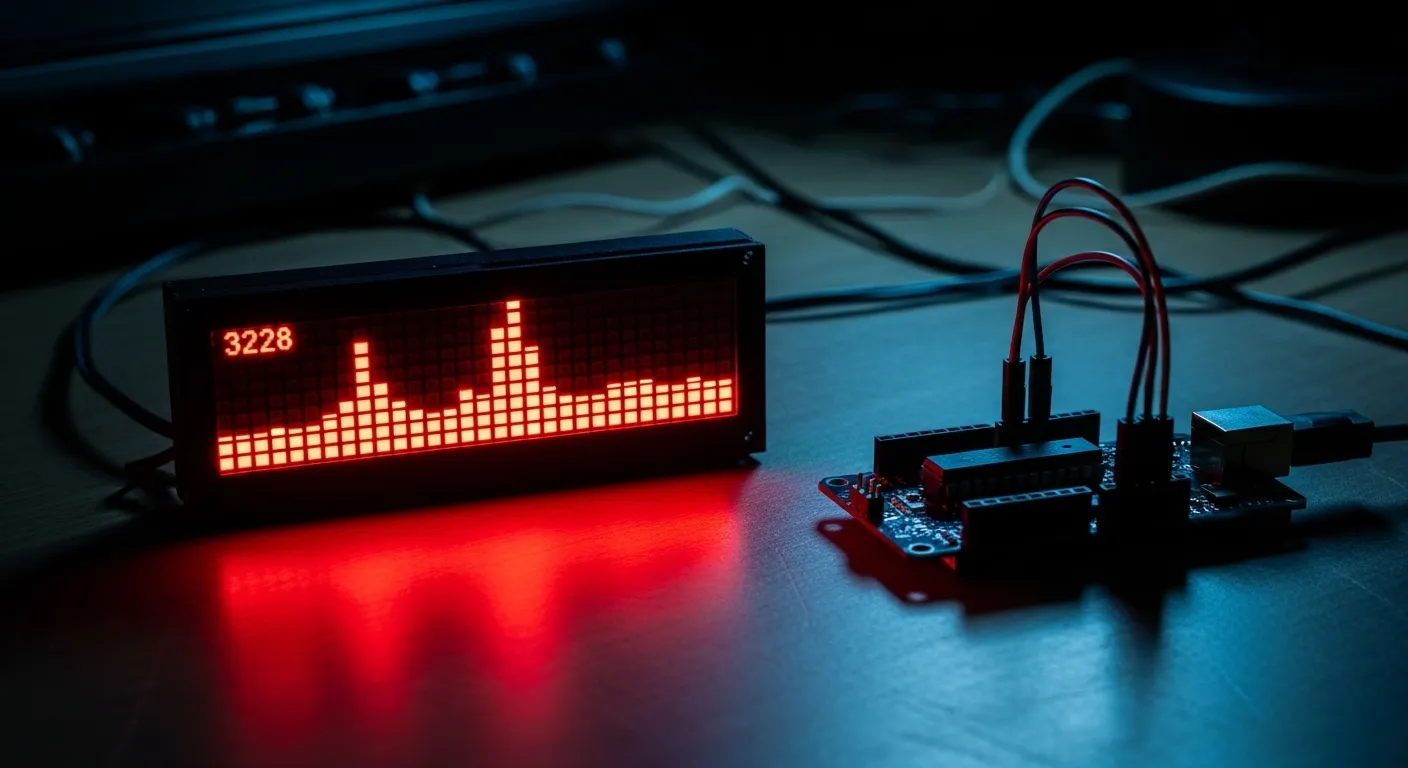
Greetings everyone, and welcome to my article tutorial. Today, I'll guide you through the process of creating an Arduino audio spectrum on LED dot matrix 4-in-1 display.
Project Overview:
We'll guide you through building your very own audio spectrum visualizer from scratch! Using a popular Arduino Nano microcontroller and a vibrant MAX7219 dot matrix display, you can bring any audio to life. This visualizer dynamically analyzes sound frequencies in real-time, creating a stunning light show that dances to the beat. Follow our step-by-step tutorial to assemble the circuit, upload the code, and create this awesome gadget for your desk or music setup!
Technically, the project works by feeding an audio signal to the Arduino, which then uses a Fast Fourier Transform (FFT) library. The FFT algorithm analyzes the signal, breaking it down into its constituent frequency bins. The magnitude of each frequency bin is then visually mapped as a corresponding column height on the dot matrix display, creating the real-time spectrum effect.
Before beginning, a huge shoutout to JLCMC for sponsoring.
Now, let's get started with our project!
Supplies

Electronic Components Required:
- Arduino Uno
- MAX7219 LED Dot Matrix 4 In 1 Display
- Sound Sensor
- Breadboard
- Cardboard
Additional Tools:
- Hot Glue
- Cutter
Software:
- Arduino IDE
Step 1: Breadboard Circuit

Follow the steps:
- Mount the Arduino Nano into the breadboard, as shown in the image.
- Connect the female-to-male jumper wire at one end to the MAX7219 LED Dot Matrix Display input terminals. i.e., VCC, GND, DIN, CS, and CLK pinouts.
- Connect the male terminal of the jumper wire from the MAX7219 LED Dot Matrix Display to the following pins: VCC -> 5V, GND -> GND, DIN -> D11, CS -> D10, and CLK -> D13 pins of the Arduino Nano. The table of the pin configurations is attached.
- Now we will use another female-to-male jumper wire to connect the Sound Sensor with the Arduino Nano. Connect the jumper wire's female terminal with the Sound Sensors's VCC, GND, and OUT.
- Connect the male terminal of the jumper wire from the Sound Sensor to the following pins: VCC -> 3.3V, GND -> GND, OUT -> A0 pins of the Arduino Nano. The table of the pin configurations is attached.
Connect the USB to your Arduino Nano.
Step 2: Elevate Your Electronic Projects - JLCMC


JLCMC is your one-stop shop for all electronic manufacturing needs, offering an extensive catalog of nearly 600,000 SKUs that cover hardware, mechanical, electronic, and automation components. Their commitment to guaranteeing genuine products, rapid shipping (with most in-stock items dispatched within 24 hours), and competitive pricing truly sets them apart. In addition, their exceptional customer service ensures you always get exactly what you need to bring your projects to life.
They have everything you need for your next project:
- Custom Linear Guide Shafts: Precision-engineered for applications like 3D printing, CNC machines, and industrial automation.
- Aluminum Profiles: Versatile, durable framing solutions—perfect for machine enclosures, workstations, and custom assemblies.
To show their support for our community, JLCMC is offering an exclusive $70 discount coupon. This is the perfect opportunity to save on high-quality components for your next project. Don’t miss out—visit https://jlcmc.com/?from=RBL to explore their amazing range of products and grab your discount coupon today!
Step 3: Coding Time!


Before we proceed with the coding process, make sure to install the following library with these version numbers; otherwise, you will get the errors:
arduinoFFT.h --> v2.0.4 MD_MAX72xx.h --> v3.5.1
Now, copy and paste this code into your Arduino IDE:
#include <arduinoFFT.h>
#include <MD_MAX72xx.h>
#include <SPI.h>
MD_MAX72XX disp = MD_MAX72XX(MD_MAX72XX::FC16_HW, 10, 4);
arduinoFFT FFT = arduinoFFT();
double realComponent[64];
double imagComponent[64];
int spectralHeight[] = {0b00000000,0b10000000,0b11000000,
                        0b11100000,0b11110000,0b11111000,
                        0b11111100,0b11111110,0b11111111};
int index, c, value;
void setup()
{
  disp.begin();
  Serial.begin(9600);
}
void loop()
{
  int sensitivity = map(analogRead(A0),0,1023,50,100);
  Serial.println (analogRead(A0));
  for(int i=0; i<64; i++)
  {
    realComponent[i] = analogRead(A0)/sensitivity;
    imagComponent[i] = 0;
  }
  FFT.Windowing(realComponent, 64, FFT_WIN_TYP_HAMMING, FFT_FORWARD);
  FFT.Compute(realComponent, imagComponent, 64, FFT_FORWARD);
  FFT.ComplexToMagnitude(realComponent, imagComponent, 64);
  for(int i=0; i<32; i++)
  {
    realComponent[i] = constrain(realComponent[i],0,80);
    realComponent[i] = map(realComponent[i],0,80,0,8);
    index = realComponent[i];
    value = spectralHeight[index];
    c = 31 - i;
    disp.setColumn(c, value);
  }
}
Step 4: Let's Make a CASE for It


To construct the case, I will use cardboard. The PDF file containing the cardboard cutout templates is attached below. Please refer to the accompanying images for guidance on assembling the case for this project.
Step 5: Working Video and Tutorial
Congratulations! You’ve successfully built your Arduino Audio Spectrum on LED Dot Matrix 4 In 1 Display. A demonstration video of this project can be viewed here: Watch Now
Thank you for your interest in this project. If you have any questions or suggestions for future projects, please leave a comment, and I will do my best to assist you.
For business or promotional inquiries, please contact me via email at Email.
I will continue to update this article with new information. Don’t forget to follow me for updates on new projects and subscribe to my YouTube channel (YouTube: roboattic Lab) for more content. Thank you for your support.
Related Articles
 arduino project
How to Make Gesture Control Robot || #MadeWithArduino
The transmitter of the car contains gyroscopic sensors which track our hand's gestures and transmit the signal to the receiver of the car and then the car works accordingly to it.
Read the full arduino project tutorial: Follow Tutorial arduino project
Build Your Own Object Tracking 4 DOF Robotics Arm With Arduino
In this project, the robotic arm will execute actions corresponding to the commands received from the sensors.
Read the full arduino project tutorial: See Project Details arduino project
DIY Long-Range LoRa RC Tank Using Arduino Uno | Complete Build Guide
Build a DIY long-range LoRa RC tank using Arduino Uno and Reyax RYLR998. Follow this complete guide covering chassis assembly, wiring, firmware, and testing.
Read the full arduino project tutorial: View Complete Guide