
How I Built a Custom Long Range LoRa Controller from Scratch
Quick Navigation
What if your RC controller could work from 10 kilometers away and look like it came straight out of a product box?
Most DIY RC controllers are either too short-ranged or too ugly to be proud of. Bluetooth cuts out after 10 meters. WiFi dies after 50. Even dedicated RF modules barely push 1–2 km in open air. And the ones that do go far? They cost a fortune.
So I built my own completely from scratch.
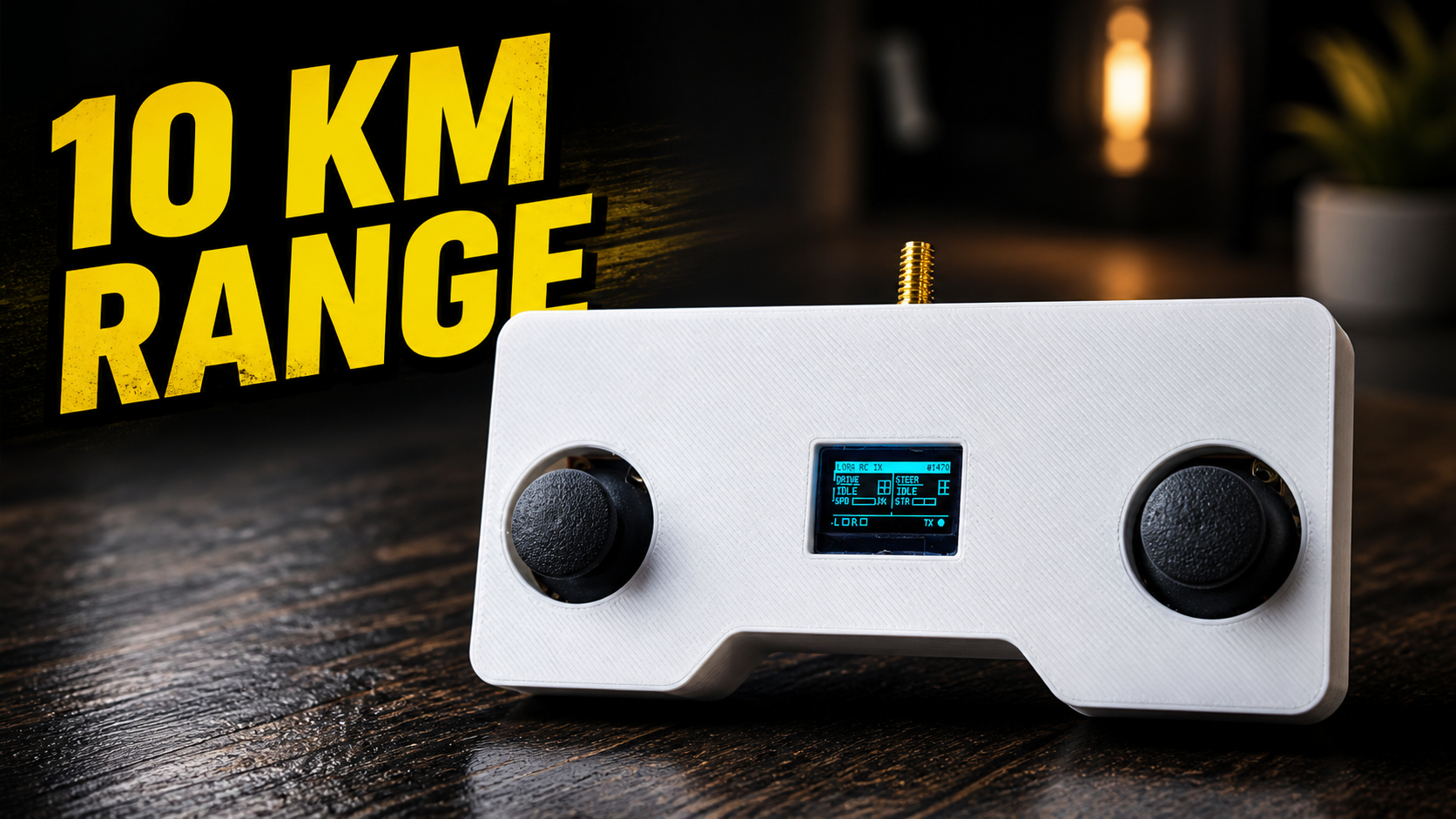
This is a custom long-range RC controller powered by LoRa technology, using the Reyax RYLR998 transceiver module. The transmitter sits inside a 3D printed enclosure I designed myself, with dual joysticks, a live OLED display showing real-time speed and direction, and two 18650 batteries for power. On the receiver end, an Arduino UNO with a motor driver shield controls BO motors and a servo responding instantly to every joystick movement.
What you will build:
- A handheld LoRa RC transmitter with a 3D printed enclosure and live OLED HUD
- A receiver that drives motors and a servo in real time
- A wireless link that can theoretically reach up to 10 km in open air
What you will learn:
- How LoRa works and why it beats WiFi/Bluetooth for range
- How to wire and configure the RYLR998 module using simple AT commands
- How to build a perf board circuit and fit it inside a 3D printed case
- How to write transmitter and receiver code for Arduino from scratch
Whether you are a complete beginner who has never touched a soldering iron, or an experienced maker looking for a clean long-range control system for your next RC project — this guide is written for you. Every step has photos, every circuit has a diagram, and all code and design files are free to download.
Let's build something worth showing off.
Supplies

Electronic Components Required:
- Arduino Nano
- Reyax RYLR998 LoRa Module (x2)
- 0.9" OLED display
- Joystick Module (x2)
- 18650 Battery (x2) + Holder
- Arduino UNO
- L293D Motor Driver Shield
- 3D Printed body & keycaps (see step 1)
Step 1: CAD & 3D Printing

The enclosure is one of the things that makes this project stand out from a typical breadboard build. Instead of stuffing everything into a random box, I designed a custom two-part case in CAD a base and a lid that fits all the components snugly: both joysticks on either side, the OLED display centered in the front, and enough internal space for the Arduino Nano, perf board, and 18650 battery holder.
The design has ergonomic grip cutouts on both sides so it sits comfortably in your hands like an actual RC controller.
Print Settings I used:
- Filament: PLA — White
- Infill: 10%
- Supports: Not required
- Layer Height: 0.2mm recommended
10% infill is more than enough for this enclosure — it keeps the print lightweight while still being rigid enough to handle daily use.
Step 2: LoRa Module — What It Is & Why RYLR998

Before building the controller, it is important to understand the wireless technology behind it: LoRa.
LoRa stands for Long Range, and it is designed to send small data packets over very long distances while using very little power. That makes it a great fit for an RC controller, because we only need to transmit joystick values and button states — not heavy data like audio or video.
For this project, I used the Reyax RYLR998. I chose it because it is simple to work with and very reliable. It supports UART-based AT commands, so instead of dealing with complex RF libraries or wiring, you can send basic text commands like AT+SEND and let the module handle the rest internally.
A few things I liked about the RYLR998 are its long range, low power consumption, and built-in antenna, which makes the setup clean and beginner-friendly. Since the module runs on 3.3V logic, I also used a simple voltage divider on the TX line while connecting it to my 5V microcontroller.
Reyax offers a strong lineup of wireless modules, and the RYLR998 turned out to be a solid choice for this RC controller build.
Step 3: The Build

This is where everything comes together. Before jumping into the wiring, let me quickly explain how this system works so the circuit diagram makes more sense.
How it works in short: The transmitter reads both joystick values (X and Y axes + buttons), packs them into a small data string, and sends it wirelessly via the RYLR998 LoRa module using a simple AT command — AT+SEND. The receiver picks up that packet and uses the values to control motors and a servo. That's the whole system. Two Arduinos, two RYLR998 modules, talking to each other over LoRa.
Now let's build it.
1. Cut the PCB Board
Start by cutting your general-purpose perfboard to the following dimensions:
- Overall size: 160 × 71 mm
- Corner radius: R5 mm
- Bottom cutout depth: 10.5 mm (for grip clearance inside the enclosure)
- Left section width: 45 mm
- Center section width: 45.7 mm
- Right section width: 45 mm
- Top margin: 10 mm
This shape is designed to fit perfectly inside the 3D printed enclosure. Take your time cutting it. A Dremel or a sharp PCB cutter works best for clean edges.
💡 Tip: Mark the dimensions with a marker first, then score and snap, or use a rotary tool for cleaner curved corners.
2. Mount the Joysticks
Once your PCB is cut, take your M3 bolts and insert them through the pre-drilled holes on the left and right sections of the board; these are the joystick mounting holes.
Place each joystick module onto the bolts, then tighten them from below using M3 nuts and a screwdriver. Make sure both joysticks sit flush and feel sturdy; they will take a lot of physical input during use.
3. Mount the Arduino Nano
Place a female pin header on the PCB at the center section and solder it in place. Then simply plug the Arduino Nano into the header. Using a female header instead of direct soldering is a smart choice — if the Nano ever needs to be replaced or reprogrammed separately, you can just pull it out.
4. Wire Everything Up — Circuit Diagram
Now follow the circuit diagram attached to this step and make all the connections.
5. The Voltage Divider — Important!
This is a small but critical detail that beginners often miss.
The Arduino Nano operates on 5V logic, meaning its TX pin outputs 5V signals. The RYLR998 LoRa module however runs on 3.3V logic and feeding 5V directly into its RXD pin can damage it permanently.
The fix is a simple voltage divider using just two resistors:
Output voltage = 5V × 22 / (10 + 22) = 3.44V safe for the RYLR998.
You only need this divider on one line — Arduino TX → RYLR998 RXD. The other direction (RYLR998 TX → Arduino RX) is fine as a direct connection because the Arduino can read 3.3V signals without any issue.
6. Final Assembly — Into the Enclosure
Once all the soldering and wiring is done, do a quick sanity check; power it up via USB and open the Serial Monitor to confirm the RYLR998 responds with +OK to the AT command.
If everything checks out, carefully place the assembled PCB into the 3D printed base. The joystick caps should poke through the holes on either side, the OLED sits in its center cutout, and the slider switch aligns with its slot. Place the lid on top and secure it.
Your transmitter hardware is complete.
Step 4: Coding
With the hardware fully assembled, it is time to bring it to life with code.
Libraries Required
Before uploading the code, you need to install libraries in the Arduino IDE. Both are available directly through the built-in Library Manager.
Open Arduino IDE → go to Sketch → Include Library → Manage Libraries and search for:
- U8g2 by olikraus This library handles the OLED display. The reason we are using U8g2 instead of the more common Adafruit SSD1306 library is that the OLED display used in this project has an **SH1106 chip **not SSD1306. U8g2 supports both chips and works perfectly here.
💡 Tip: Make sure you are on the latest version of U8g2. Older versions can sometimes cause compilation issues on the Arduino Nano.
The Code
/*
 * ============================================================
 *  Code by: Shahbaz Hashmi Ansari
 *  LoRa RC TRANSMITTER — Arduino Nano
 *  Reyax RYLR998 LoRa Module (915MHz, AT Commands)
 *  Dual Analog Joystick + 0.96" SH1106 OLED (I2C)
 *  3D Printed Custom Enclosure + 2x 18650 Battery
 * ============================================================
 */

#include <SoftwareSerial.h>
#include <U8g2lib.h>
#include <Wire.h>

SoftwareSerial loraSerial(2, 3);
U8G2_SH1106_128X64_NONAME_1_HW_I2C u8g2(U8G2_R0, U8X8_PIN_NONE);

#define JOY_L_X    A0
#define JOY_L_Y    A1
#define JOY_R_X    A2
#define JOY_R_Y    A3
#define JOY_L_BTN   4
#define JOY_R_BTN   5
#define DEAD_ZONE  60

unsigned long lastSend    = 0;
unsigned long lastDisplay = 0;
unsigned long txCount     = 0;
bool          loraOK      = false;
char          payload[32];
char          loraCmd[64];
char          buf[22];

void sendAT(const char* cmd, int waitMs = 300) {
  loraSerial.println(cmd);
  delay(waitMs);
  while (loraSerial.available()) loraSerial.read();
}

bool sendATCheck(const char* cmd, int waitMs = 500) {
  loraSerial.println(cmd);
  delay(waitMs);
  char resp[20] = "";
  int i = 0;
  while (loraSerial.available() && i < 19)
    resp[i++] = loraSerial.read();
  return strstr(resp, "+OK") != NULL;
}

const char* getDir(int x, int y) {
  bool fwd  = y < (512 - DEAD_ZONE);
  bool bwd  = y > (512 + DEAD_ZONE);
  bool lft  = x < (512 - DEAD_ZONE);
  bool rgt  = x > (512 + DEAD_ZONE);
  if (fwd && lft)  return "FWD-L";
  if (fwd && rgt)  return "FWD-R";
  if (bwd && lft)  return "BWD-L";
  if (bwd && rgt)  return "BWD-R";
  if (fwd)         return "FWD";
  if (bwd)         return "BWD";
  if (lft)         return "LEFT";
  if (rgt)         return "RIGHT";
  return "IDLE";
}

// ── Splash ──
void showSplash() {
  u8g2.firstPage();
  do {

    u8g2.drawRBox(0, 0, 128, 26, 4);
    u8g2.setDrawColor(0);
    u8g2.setFont(u8g2_font_7x13B_tr);
    u8g2.drawStr(8, 10, "roboattic Lab");
    u8g2.setFont(u8g2_font_6x10_tr);
    u8g2.drawStr(22, 22, "x  REYAX");
    u8g2.setDrawColor(1);

    u8g2.setFont(u8g2_font_6x10_tr);
    u8g2.drawStr(10, 38, "LoRa RC Controller");
    u8g2.drawStr(22, 50, "RYLR998 Module");

    u8g2.drawHLine(0, 55, 128);
    u8g2.setFont(u8g2_font_5x7_tr);
    u8g2.drawStr(18, 63, "Initializing...");
  } while (u8g2.nextPage());
  delay(2500);
}

// ── LoRa Status Screen ──
void showLoraStatus() {
  u8g2.firstPage();
  do {
    u8g2.setFont(u8g2_font_6x10_tr);
    u8g2.drawStr(0, 10, "Module Status");
    u8g2.drawHLine(0, 13, 128);

    u8g2.setFont(u8g2_font_6x10_tr);
    if (loraOK) {
      u8g2.drawStr(0, 26, "\x10 RYLR998  [OK]");
    } else {
      u8g2.drawStr(0, 26, "! RYLR998  [FAIL]");
    }
    u8g2.drawStr(0, 38, "  Addr : 1");
    u8g2.drawStr(0, 48, "  Net  : 6");
    u8g2.drawStr(0, 58, "  Band : 915 MHz");
  } while (u8g2.nextPage());
  delay(2000);
}

// ── Draw mini joystick crosshair ──
void drawJoyCross(int cx, int cy, int jx, int jy) {
  u8g2.drawFrame(cx, cy, 14, 14);
  u8g2.drawHLine(cx, cy + 7, 14);
  u8g2.drawVLine(cx + 7, cy, 14);
  int dx = map(jx, 0, 1023, 1, 13);
  int dy = map(jy, 0, 1023, 1, 13);
  u8g2.drawBox(cx + dx - 1, cy + dy - 1, 3, 3);
}

// ── Main HUD — Clean product-like UI ──
void updateHUD(int speed, int steer, const char* lDir, const char* rDir,
               bool lBtn, bool rBtn, int rawLX, int rawLY, int rawRX, int rawRY) {
  u8g2.firstPage();
  do {
    u8g2.drawBox(0, 0, 128, 11);
    u8g2.setDrawColor(0);
    u8g2.setFont(u8g2_font_5x7_tr);
    u8g2.drawStr(2, 8, "LORA RC TX");
    snprintf(buf, sizeof(buf), "#%lu", txCount);
    u8g2.drawStr(128 - (strlen(buf) * 5) - 2, 8, buf);
    u8g2.setDrawColor(1);
    u8g2.drawVLine(64, 11, 42);

    // ══════ LEFT PANEL — DRIVE ══════
    u8g2.setFont(u8g2_font_5x7_tr);
    u8g2.drawStr(2, 20, "DRIVE");
    u8g2.drawHLine(2, 22, 26);

    // Direction label (bold)
    u8g2.setFont(u8g2_font_6x10_tr);
    u8g2.drawStr(2, 33, lDir);

    // Speed bar
    u8g2.setFont(u8g2_font_5x7_tr);
    u8g2.drawStr(2, 42, "SPD");
    u8g2.drawFrame(20, 36, 26, 7);
    u8g2.drawBox(20, 36, map(speed, 0, 100, 0, 26), 7);
    snprintf(buf, sizeof(buf), "%d%%", speed);
    u8g2.drawStr(48, 42, buf);

    // Mini joystick visualizer (left)
    drawJoyCross(48, 18, rawLX, rawLY);

    // ══════ RIGHT PANEL — STEER ══════
    u8g2.setFont(u8g2_font_5x7_tr);
    u8g2.drawStr(68, 20, "STEER");
    u8g2.drawHLine(68, 22, 30);

    // Direction label
    u8g2.setFont(u8g2_font_6x10_tr);
    u8g2.drawStr(68, 33, rDir);

    // Steer bar (center-origin: left/right from midpoint)
    u8g2.setFont(u8g2_font_5x7_tr);
    u8g2.drawStr(68, 42, "STR");
    u8g2.drawFrame(86, 36, 26, 7);
    u8g2.drawVLine(99, 36, 7);  // center mark
    if (steer > 0)
      u8g2.drawBox(99, 36, map(steer, 0, 100, 0, 13), 7);
    else if (steer < 0)
      u8g2.drawBox(99 + map(steer, 0, -100, 0, -13), 36,
                   map(abs(steer), 0, 100, 0, 13), 7);

    // Mini joystick visualizer (right)
    drawJoyCross(114, 18, rawRX, rawRY);

    // ══════ BOTTOM STATUS BAR ══════
    u8g2.drawHLine(0, 53, 128);

    u8g2.setFont(u8g2_font_5x7_tr);
    // Button indicators
    u8g2.drawStr(2, 63, "L");
    if (lBtn)
      u8g2.drawBox(10, 56, 8, 7);
    else
      u8g2.drawFrame(10, 56, 8, 7);

    u8g2.drawStr(22, 63, "R");
    if (rBtn)
      u8g2.drawBox(30, 56, 8, 7);
    else
      u8g2.drawFrame(30, 56, 8, 7);

    // TX indicator
    u8g2.drawStr(100, 63, "TX");
    u8g2.drawDisc(118, 59, 3);
  } while (u8g2.nextPage());
}

void setup() {
  Serial.begin(9600);
  loraSerial.begin(9600);

  pinMode(JOY_L_BTN, INPUT_PULLUP);
  pinMode(JOY_R_BTN, INPUT_PULLUP);

  u8g2.begin();
  showSplash();

  Serial.println(F("================================="));
  Serial.println(F(" LoRa RC TX - roboattic Lab"));
  Serial.println(F("================================="));
  delay(500);

  loraOK = sendATCheck("AT");
  Serial.println(loraOK ? F("RYLR998: OK!") : F("RYLR998: FAIL!"));

  sendAT("AT+ADDRESS=1");
  sendAT("AT+NETWORKID=6");
  sendAT("AT+BAND=915000000");
  sendAT("AT+CRFOP=22");

  Serial.println(F("Addr:1 Net:6 915MHz 22dBm"));

  showLoraStatus();
  Serial.println(F("Transmitting..."));
}

void loop() {
  analogRead(JOY_L_X); delay(1); int rawLX = analogRead(JOY_L_X);
  analogRead(JOY_L_Y); delay(1); int rawLY = analogRead(JOY_L_Y);
  analogRead(JOY_R_X); delay(1); int rawRX = analogRead(JOY_R_X);
  analogRead(JOY_R_Y); delay(1); int rawRY = analogRead(JOY_R_Y);

  bool lBtn = (digitalRead(JOY_L_BTN) == LOW);
  bool rBtn = (digitalRead(JOY_R_BTN) == LOW);

  int corrLX = 1023 - rawLY;
  int corrLY = 1023 - rawLX;
  int corrRX = 1023 - rawRY;
  int corrRY = 1023 - rawRX;

  int lxOut = map(corrLX, 0, 1023, 0, 255);
  int lyOut = map(1023 - corrLY, 0, 1023, 0, 255);
  int rxOut = map(corrRX, 0, 1023, 0, 255);
  int ryOut = map(1023 - corrRY, 0, 1023, 0, 255);

  const char* lDir = getDir(corrLX, corrLY);
  const char* rDir = getDir(corrRX, corrRY);

  int speed = map(abs(lyOut - 127), 0, 127, 0, 100);
  int steer = map(rxOut, 0, 255, -100, 100);

  if (millis() - lastSend >= 150) {
    lastSend = millis();
    txCount++;

    snprintf(payload, sizeof(payload), "%d,%d,%d,%d,%d,%d",
             lxOut, lyOut, rxOut, ryOut,
             lBtn ? 1 : 0, rBtn ? 1 : 0);

    snprintf(loraCmd, sizeof(loraCmd), "AT+SEND=2,%d,%s",
             strlen(payload), payload);

    while (loraSerial.available()) loraSerial.read();
    loraSerial.println(loraCmd);

    if (txCount % 5 == 0) {
      Serial.print(F("TX >> ")); Serial.println(payload);
    }
  }

  // ── Update OLED every 150ms ──
  if (millis() - lastDisplay >= 150) {
    lastDisplay = millis();
    updateHUD(speed, steer, lDir, rDir, lBtn, rBtn,
              corrLX, corrLY, corrRX, corrRY);
  }
}
Uploading to Arduino Nano
Follow these steps to upload:
- Connect your Arduino Nano to your laptop via USB
- Open the Arduino IDE and paste the code
- Go to Tools → Board and select Arduino Nano
- Go to Tools → Processor and select ATmega328P (Old Bootloader)
- Go to Tools → Port and select the correct COM port
- Click the Upload button
- Wait for "Done uploading" in the status bar
Once uploaded, open Tools → Serial Monitor, set the baud rate to 9600, and you should see:
=================================
 LoRa RC TX - RoboAtticLab
=================================
RYLR998: OK!
Address: 1  Net: 6  915MHz  22dBm
Transmitting...

TX >> 127,255,127,127,0,0
If you see RYLR998: OK! Your module is wired correctly, and the system is live.
💡 Tip: If you see RYLR998: FAIL! instead, the most common cause is a baud rate mismatch. The RYLR998 ships from the factory at 115200 baud. You can permanently change it to 9600 by sending AT+IPR=9600 once at 115200 after that, it stays at 9600 forever even after power cycling.
Step 5: Receiver Side

The receiver side is kept very simple in this build. The goal here is just to show that the LoRa link works properly and can control real hardware wirelessly.
On the receiver side, I used an Arduino UNO, an L293D motor driver shield, and the Reyax RYLR998 LoRa module. The RYLR998 is connected the same way as on the transmitter side: VDD to 3.3V, GND to GND, TXD to D2, and RXD to D3 through a voltage divider. Two BO motors are connected to the motor outputs of the shield, and a servo is connected to the servo pin.
Whenever a packet comes from the transmitter, the Arduino reads the joystick values and controls the motors and servo accordingly. There is also a 500 ms safety timeout, so if the signal is lost, the motors stop automatically.
This setup is enough to prove the concept, but it can be expanded into many different projects — an RC car, robot, boat, or even a drone.
Step 6: Working Video & Tutorial
And that's it; your LoRa RC controller is alive. 📡
Power it on, watch the OLED splash screen boot up, push a joystick, and see the motors respond from across the room. Now walk further. Keep walking. That's the moment you realize this little module is something special.
What started as a simple wireless control experiment ended up becoming a proper handheld controller that genuinely looks and feels like a product thanks to the 3D-printed enclosure and the live OLED HUD. And the best part? The Reyax RYLR998 handled everything without a single hiccup.
The full build video including the wiring process, code walkthrough, and live testing is on my YouTube channel. Watch it below or head over directly.
If you build this, I'd love to see it. Drop a photo in the comments, especially if you use it to control something different, modify the enclosure, or add your own features to the code. That's what open builds are for.
Got stuck somewhere? Leave a comment and I'll help you debug it. The most common issues are covered in the troubleshooting step, but if yours is something different, just ask.
Also, I asked this in the receiver step, and I'll ask again here: what should this controller drive next? RC car, drone, robot, boat — drop your vote in the comments. The most requested one becomes the next build.
For collaboration or business inquiries, reach out at shahbazhashmi006@gmail.com
Follow me here on Instructables so you don't miss the next one.
YouTube: RoboAtticLab
See you in the next one. 🔧
Related Articles
 arduino project
How to Make Gesture Control Robot || #MadeWithArduino
The transmitter of the car contains gyroscopic sensors which track our hand's gestures and transmit the signal to the receiver of the car and then the car works accordingly to it.
Read the full arduino project tutorial: Follow Tutorial arduino project
Build Your Own Object Tracking 4 DOF Robotics Arm With Arduino
In this project, the robotic arm will execute actions corresponding to the commands received from the sensors.
Read the full arduino project tutorial: See Project Details arduino project
DIY Arduino FFT Audio Spectrum Visualizer
Build a real-time audio spectrum visualizer using an Arduino and MAX7219 display. This DIY guide uses FFT to turn your music into a stunning light show.
Read the full arduino project tutorial: See Project Details